'/%3e%3cpath%20d='M20%200C31.0454%200.000263888%2039.9999%208.95455%2040%2020C39.9999%2030.962%2031.1805%2039.8647%2020.25%2039.999C20.2428%2039.9991%2020.2348%2039.999%2020.2275%2039.999V40C20.2173%2040%2020.2065%2039.9991%2020.1963%2039.999C20.1311%2039.9996%2020.0653%2040%2020%2040V39.9941C18.9137%2039.9663%2017.8401%2039.7415%2016.835%2039.3252C15.76%2038.8799%2014.7828%2038.227%2013.96%2037.4043C13.137%2036.5813%2012.4835%2035.6036%2012.0381%2034.5283C11.5928%2033.4531%2011.3633%2032.3005%2011.3633%2031.1367V21.1904L15%2023.29V31.1367C15%2031.823%2015.1358%2032.5026%2015.3984%2033.1367C15.6611%2033.7708%2016.0459%2034.3477%2016.5312%2034.833C17.0164%2035.3181%2017.5927%2035.7032%2018.2266%2035.9658C18.842%2036.2207%2019.5013%2036.3546%2020.167%2036.3623C20.1795%2036.3622%2020.1925%2036.3625%2020.2051%2036.3623C29.1474%2036.2525%2036.3632%2028.9687%2036.3633%2020C36.3632%2010.9629%2029.0371%203.63698%2020%203.63672C18.3456%203.63673%2016.7505%203.88277%2015.248%204.33789L11.2344%202.01953C11.3217%201.97623%2011.4102%201.93338%2011.499%201.8916C14.081%200.677617%2016.9642%201.31978e-05%2020%200Z'%20fill='url(%23paint1_linear_3622_27254)'/%3e%3ccircle%20cx='13.179'%20cy='17.2727'%20r='2.27273'%20fill='%237F6AA0'/%3e%3cdefs%3e%3clinearGradient%20id='paint0_linear_3622_27254'%20x1='32.2865'%20y1='6.36342'%20x2='-0.0294657'%20y2='36.0851'%20gradientUnits='userSpaceOnUse'%3e%3cstop%20offset='0.163105'%20stop-color='%23D76F70'/%3e%3cstop%20offset='1'%20stop-color='%237F6AA0'/%3e%3c/linearGradient%3e%3clinearGradient%20id='paint1_linear_3622_27254'%20x1='40'%20y1='0'%20x2='9.66985'%20y2='38.7763'%20gradientUnits='userSpaceOnUse'%3e%3cstop%20stop-color='%23DB6F6E'/%3e%3cstop%20offset='1'%20stop-color='%23F7BA29'/%3e%3c/linearGradient%3e%3c/defs%3e%3c/svg%3e)
Sending a finished cut to a client should be the easy part. In practice it is where a lot of projects stall: the file is too big for email, the transfer link expires before anyone opens it, and the feedback comes back as a paragraph with "around the middle bit" in it. This post walks through how to send a video to a client by link in Magpiie, which of the two sharing routes to use, and what each one lets the client do.
What "sending a video by link" actually means
Sending a video by link means the client gets a URL instead of a file. They open it in a browser and the video plays there. Nothing to unzip, no attachment limit to fight, and no copy of an unapproved cut sitting in someone's downloads folder.
A file-transfer service hands over a copy of the file, and a public video host gives you a player. Neither is tied to your project, so whatever the client thinks of the cut ends up somewhere else. In Magpiie the link points at a draft inside a project, so the version they watch is the version on record, and any notes they leave are attached to that exact cut.
Two ways to share: a public link, or a team link
Magpiie separates watching from reviewing, and the difference decides which route you use.
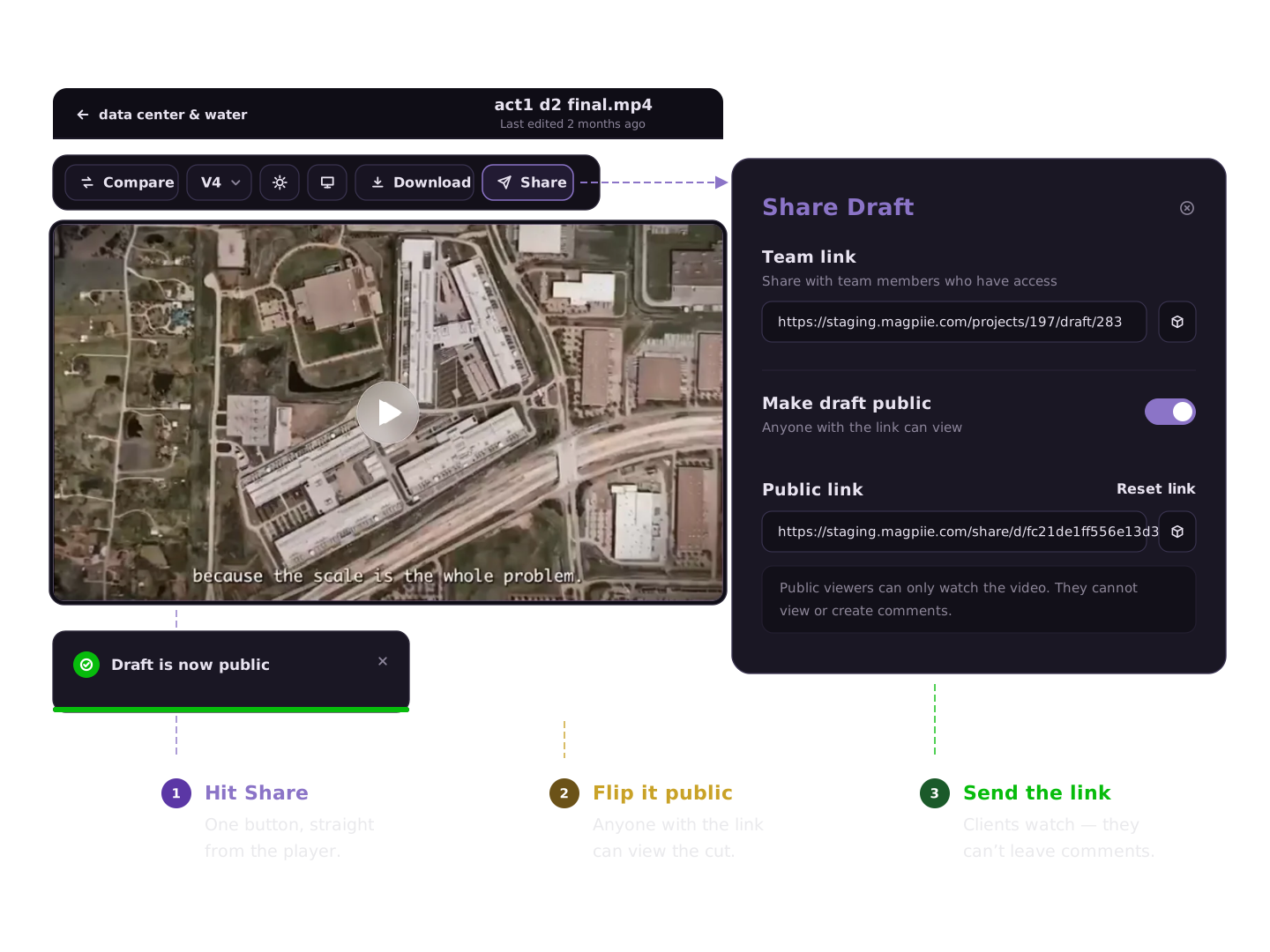
- Public link, for watching. Anyone with the link can open the draft and watch it in the browser, with no account. They cannot see or add comments and cannot download the file. Use it when someone needs to see the cut but is not the person signing it off.
- Team link, for feedback. To leave comments, a reviewer needs to be a member of the project. You invite them by email, they create a Magpiie account once, and from then on the team link opens the draft for them, where they can watch, comment on the frame, reply, approve, and download. Each member uses one of your plan's member slots.
An unreleased cut is confidential until it ships. The split between watching and reviewing is there to protect it. A public viewer can watch, but cannot see or add comments and cannot download the file, so a forwarded link never turns into a copy of the cut circulating on its own. Everything beyond watching (comments, approvals, downloads) belongs to named members you invited, so each note and each sign-off is tied to a real person on the project, not to whoever the link reached.
When teams use each route
- A YouTube creator invites the brand sponsor as a member for the integration review, because they need notes and an approval on record, then sends a public link to the sponsor's wider team so they can watch the final cut.
- A creator agency adds the channel owner as a member once, at the start of the engagement. Every weekly cut after that is already in the project they sign in to, with no new link to hunt for.
- A short-film production house invites the director and producer as members for picture-lock notes, and sends a public link to a financier who only needs to see where the film has got to.
- An editor sends a public link to a colleague on another team for a quick look, without adding them to the project or spending a seat on them.
How to send a video to a client with Magpiie, step by step
- Upload the video to your project. Drag the file into a project. Magpiie accepts all common video formats, including MP4, MOV, WebM, AVI, and MKV. Uploads are chunked and resumable, so a dropped Wi-Fi connection will not cost you the whole transfer. The upload becomes a draft and stacks as the newest version.
- Decide what you need back. If the client only needs to watch, go to the next step. If you need their notes or their approval, skip to step four.
- For watching: hit Share on the draft, switch on Make draft public, copy the public link, and send it wherever the client already is, whether that is email, WhatsApp, or Slack. They press play in the browser. No account, no download.
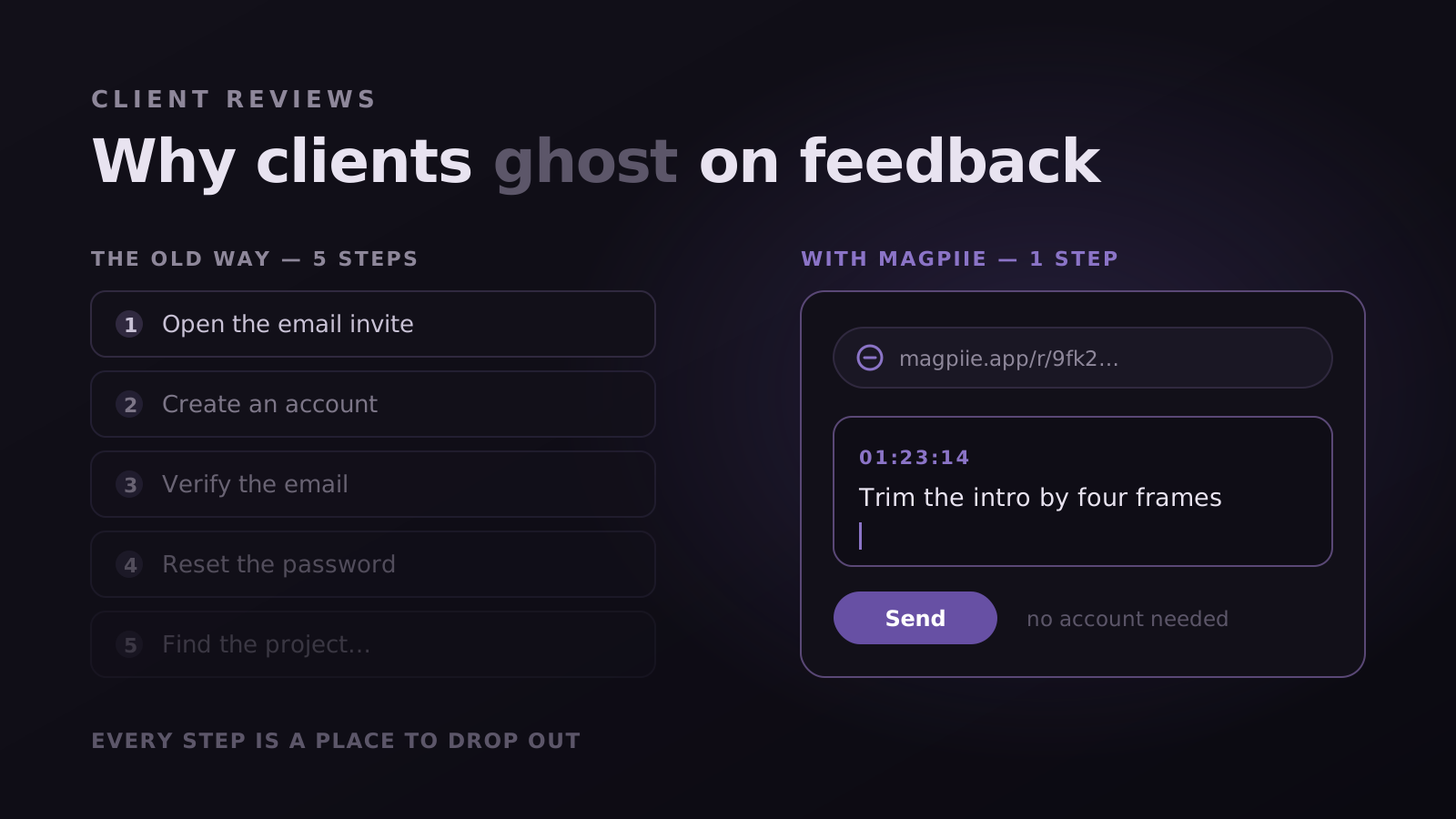
- For feedback: invite the client to the project by email. They create an account once, and the team link takes them straight to the draft. Do this at the start of a project rather than the day the cut is due, so the signup is out of the way before the first review.
- Watch the feedback arrive on the timeline. The client pauses on a frame, clicks, and types, and the note pins to that exact frame. You are notified as it lands.
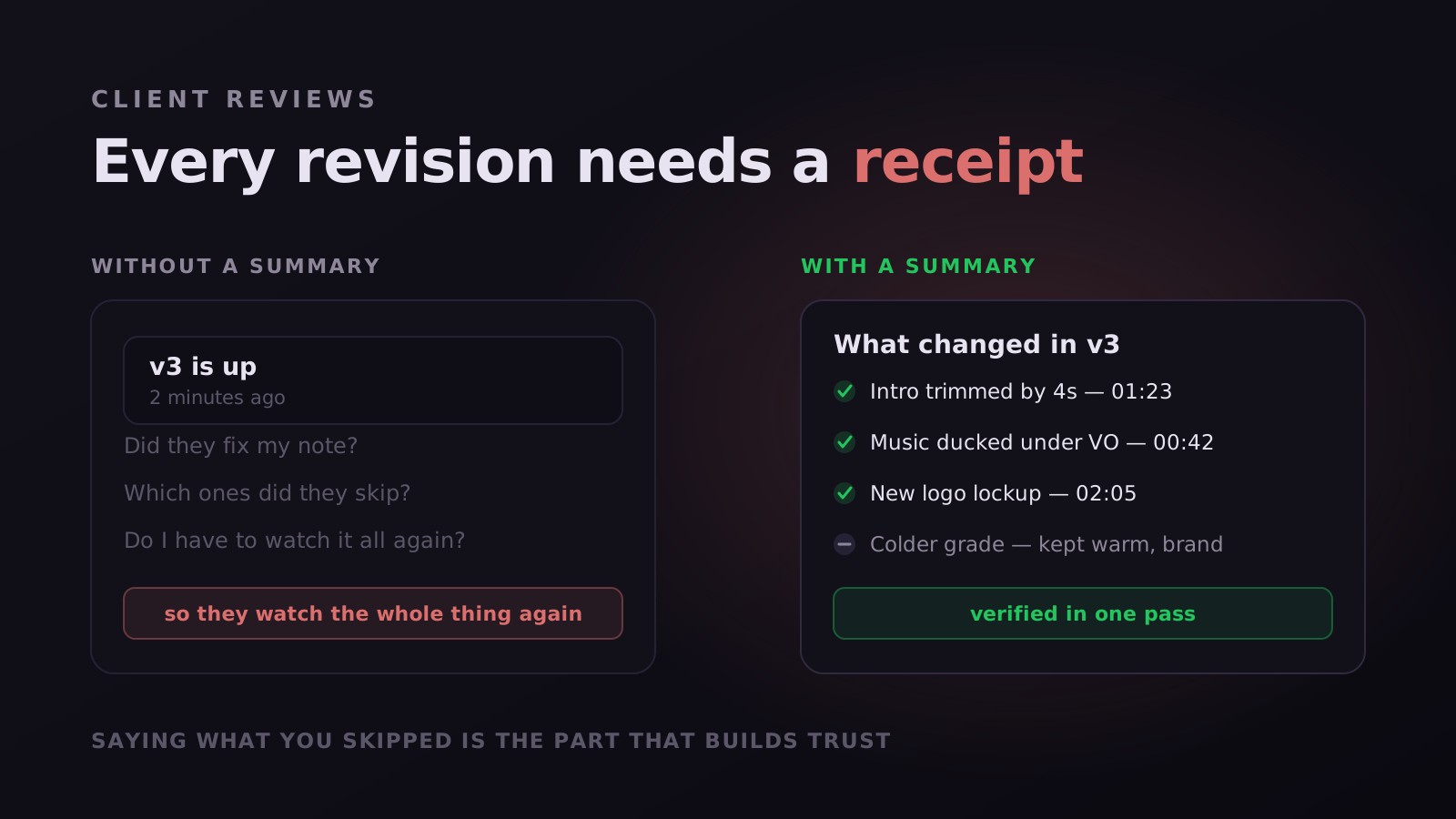
- Revise, upload the next version, and send the round back. The new cut stacks on top of the old one, and unresolved notes carry forward frame-accurately so the client can check each one was fixed.
- Collect the approval. When the client approves, the sign-off is timestamped against that specific version, which settles any later "I thought we agreed" in one lookup.
What a client can do once they are a member
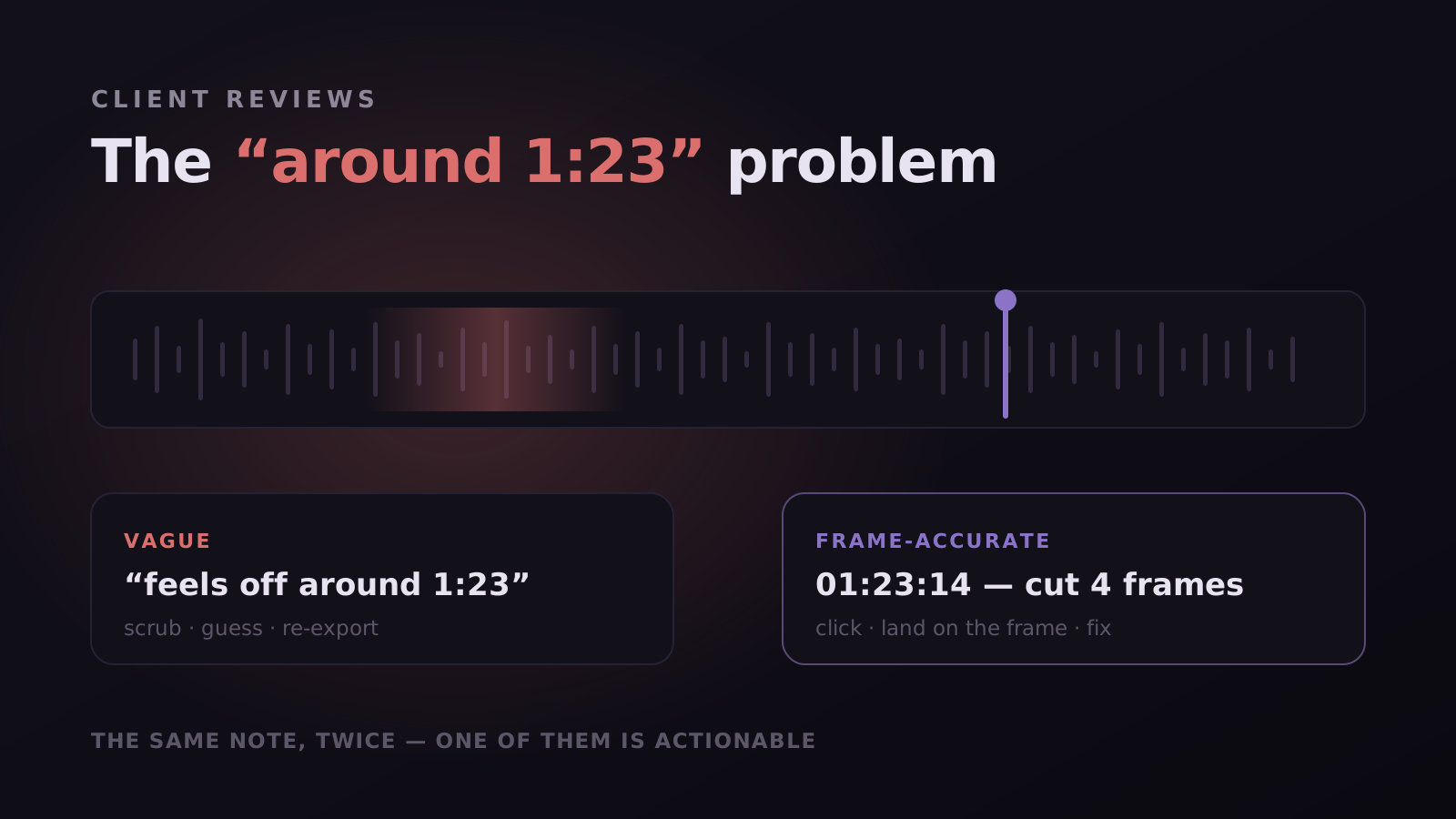
- Frame-accurate comments. Every note is pinned to the frame the client paused on, so "the logo at 1:23" is never ambiguous.
- Drawing on the frame. When words fail, the client can circle the problem freehand. For thumbnails and graphics this is often the difference between one round and three.
- Replies in context. If a note is unclear, you answer it on the same frame rather than starting a new email thread.
- The latest version, always. Reviewers are pointed at the current cut, so careful feedback never lands on a version you replaced two days ago.
- Approve, and download when they need to. Members can approve a version and download the file, so the client can take the approved cut without a separate transfer.
Why send a video by link instead of an email attachment
Email was never built for video. Most providers cap attachments at around 20 to 25 MB, which is less than a minute of 1080p footage. Compressing the cut to squeeze under the limit means your client judges colour and detail on a file you would never deliver.
The honest trade-off is the signup. A file needs no account, and a Magpiie reviewer needs one. For a one-off look, the public link removes that step entirely. For anyone whose notes you are going to act on, one signup at the start of a project is a small price for feedback that is pinned to the frame and an approval you can point to.
Control over what you send and who sees it
- Choose the route by the job. Public links are for watching. Member invites are for feedback and approval. Only people you invited can do more than watch.
- Downloads stay with members. Public viewers can watch but cannot save the file, so an unapproved cut does not end up circulating.
- Control access per project. You decide who is a member of each project and what they can do there, so a client sees their project and not the rest of your workspace.
- Every share is on the record. The activity log notes when a link was shared, alongside uploads and approvals, so nobody keeps a side log of who was sent what.
A client who comments is a member, and members count toward your plan: 2 on Free, up to 6 on Creator Crew, and up to 12 on Studio Crew. Because the price is flat per plan rather than per seat, adding a client does not change the bill until you reach the limit. Plan for them the way you would plan for a freelancer, and use public links for everyone who only needs to watch.
Check three things. The draft you are sharing is the latest version. The route matches what you need back: a public link for eyes, a member invite for notes. And the message that goes with it says what kind of feedback you need this round, for example "timing and music only, colour is locked." A focused ask gets a focused review.
Sending large video files to a client
Large files are where email and chat apps give up first. With Magpiie the size of the file affects how long the upload takes on your side, not what your client has to do. They still open one link. Chunked, resumable uploads mean a long upload survives a flaky connection. Storage is included with the plan: 5 GB on Free, 1 TB on Creator Crew, and 2 TB on Studio Crew. That is room for the work in flight, with every version of every cut kept alongside the notes that shaped it.
Common questions about sending a video by link
- Does my client need an account to watch? No. Anyone with a public link can watch the video in the browser without signing up.
- Can a client comment through the public link? No. Commenting is for project members. Invite the client to the project by email, and once they have created an account they can comment on the frame.
- Can the client download the file? Not from a public link. Members can download, so a client you have invited to the project can take the approved cut directly.
- Does a client count as a member? Yes, once they are invited to comment. Members count toward your plan's limit: 2 on Free, 6 on Creator Crew, 12 on Studio Crew.
- Which video formats can I send? All common video formats, including MP4, MOV, WebM, AVI, and MKV. You can also share audio, thumbnails and images, and scripts the same way.
- What happens when I upload a new version? It stacks on top of the previous one as the latest draft, and reviewers are pointed at it. Earlier versions and their feedback stay in the history.
- Which plan do I need? Public share links and downloadable drafts start on Creator Crew. The Free plan (2 members, 5 GB, 5 projects) is free forever and lets you and one other person try frame-accurate comments and version stacking first.
Send a public link to anyone who only needs to watch. Invite the people who need to comment or approve as members. Either way the client opens one link instead of a 2 GB attachment, and any notes or approval they leave stay with the version they were about.
Stop reading. Start shipping.
Try Magpiie on your next draft. 30-day free trial on Creator Crew, auto-renews and cancel anytime. Bring your team in five minutes.